Building reliable AI workflows comes down to understanding a few key principles about how workflow steps execute. Once you understand the mechanics—how steps handle context, how data flows between them, and how loops iterate—you can design workflows that deliver consistent results every time.
This guide covers the engineering patterns behind robust AI workflows: prompt design, JSON validation, loop strategies, and more.
The Foundation: Steps Execute in Isolation
One of the most powerful aspects of workflow design is that each step executes in complete isolation. The AI model processing step three doesn't carry over context from steps one and two—it only sees exactly what you provide in its prompt.
This isolation is a feature, not a limitation. It gives you tight control over the context each step receives, enables parallel execution, makes debugging straightforward, and prevents context from one step bleeding into another. The key is designing each prompt to be self-contained with all the context it needs.
The Context Problem
Consider this prompt for a step that categorizes expenses:
Analyze the expenses by category and identify patterns.When this prompt runs, the LLM receiving it has no idea:
- This is part of an expense report workflow
- What "the expenses" refers to
- What the previous steps extracted
- What format the output should take
Without that context, the AI model will produce a generic response about expense categorization rather than a focused JSON analysis of the specific data you intended.
The Solution: Context Preambles
Every production prompt should include a three-part preamble:
- Workflow Context: What overall task is being accomplished
- Step Purpose: What this specific step contributes
- Data Description: What the incoming variables represent
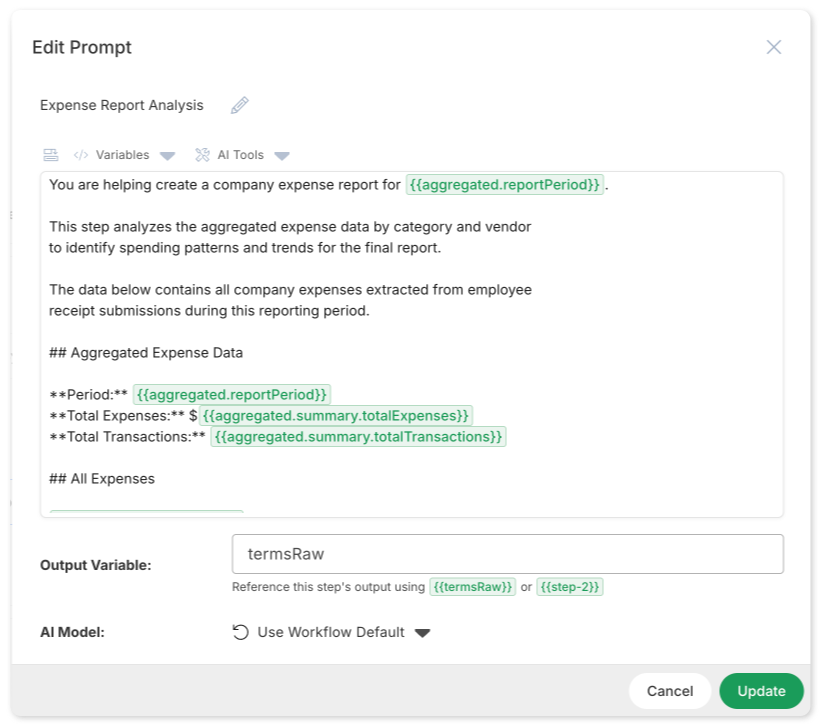
Here's that expense categorization prompt rewritten properly:
You are helping create a company expense report for {{aggregated.reportPeriod}}.

This step analyzes the aggregated expense data by category and vendor
to identify spending patterns and trends for the final report.

The data below contains all company expenses extracted from employee
receipt submissions during this reporting period.

## Aggregated Expense Data

**Period:** {{aggregated.reportPeriod}}
**Total Expenses:** ${{aggregated.summary.totalExpenses}}
**Total Transactions:** {{aggregated.summary.totalTransactions}}

## All Expenses

{{aggregated.allExpenses}}

---

Analyze the expenses by category and vendor.

Output as a JSON object with byCategory, byVendor, trends, and unusualItems.
Now the LLM understands exactly what it's doing and why. The output will be focused, relevant, and properly formatted.
JSON: The Backbone of Multi-Step Workflows
When workflow steps need to pass structured data—extracted fields, analysis results, lists of items—JSON is the natural choice. However, AI-generated JSON can sometimes include formatting issues: models may add explanatory text around the JSON, miss a closing bracket, include trailing commas, or produce valid JSON that doesn't quite match your expected schema.
Since downstream steps depend on well-formed JSON, it's worth building in a simple validation pattern to keep everything flowing smoothly.
The Validation Pattern
The solution is a two-step pattern for every JSON output. In the workflow builder, you'll create two consecutive steps:
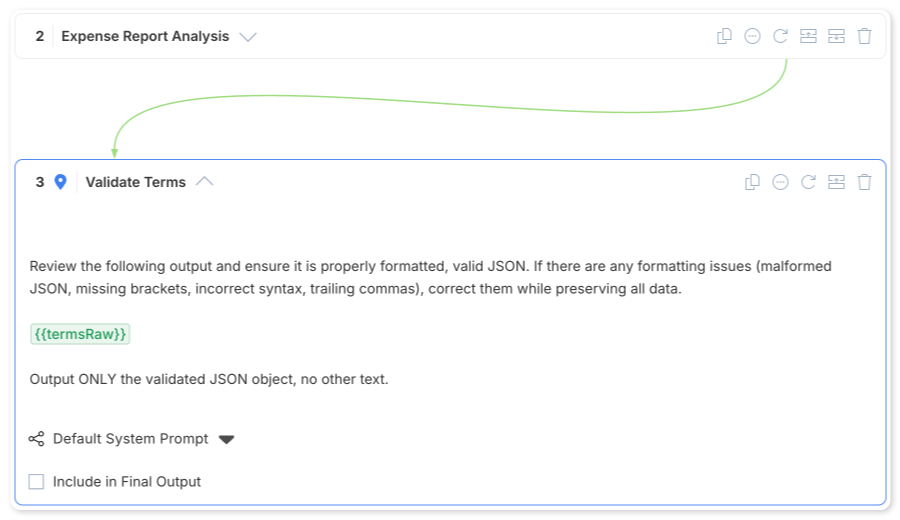
Step 1: Generation — Your prompt asks for JSON and stores the output in a variable with a Raw suffix (e.g., termsRaw). This captures whatever the LLM produces, formatted or not.
Step 2: Validation — A dedicated step that takes the raw output and cleans it up:
Review the following output and ensure it is properly formatted, valid JSON.
If there are any formatting issues (malformed JSON, missing brackets,
incorrect syntax, trailing commas), correct them while preserving all data.

{{termsRaw}}

Output ONLY the validated JSON object, no other text.
This validation step outputs to the clean variable name (e.g., terms). Subsequent steps reference the validated version, not the raw output.
This pattern adds steps to your workflow, but the reliability gain is well worth it. Validation steps catch markdown code fences, explanatory text, trailing commas, missing brackets, and property name inconsistencies.
An added benefit: validation steps open the door to using less sophisticated, lower-cost models for certain tasks. A lighter model may not always produce perfectly formatted JSON, but it can handle summarization or extraction effectively. The validation step cleans up the output, letting you use cost-efficient models where they make sense while still maintaining reliable data flow.
Property Naming: Avoid Spaces
When you define JSON schemas in your prompts, you can use any consistent naming convention—camelCase (effectiveDate), snake_case (effective_date), or kebab-case (effective-date) all work fine. The one thing to avoid is property names with spaces. In subsequent steps, you'll reference these values using variable syntax like {{terms.effectiveDate}}. Property names with spaces break variable interpolation and cause downstream steps to silently receive undefined values.
Loops: When to Iterate vs. When to Batch
A common workflow pattern involves processing multiple items: researching several competitors, analyzing multiple contracts, extracting data from numerous receipts. The workflow builder provides a dedicated Loop step type for this purpose.
Why Loops Beat Batch Processing
Asking an LLM to handle everything in one pass creates problems:
- Quality degradation: Attention diffuses across items; later items get less thorough analysis
- Inconsistent structure: Output format varies as the LLM organizes multiple results differently
- Partial failures: If analysis fails for one item, you lose everything
- Context limits: Large item lists may exceed context windows
Loops solve all of these. Each iteration gets the LLM's full attention, every iteration produces identically-structured results, one failed iteration doesn't affect others, and outputs are automatically collected as a JSON array.
Configuring Loop Steps
In the workflow builder, create a Loop step and configure:
- Source: The variable containing your array (e.g.,
{{competitors}}) - Item Variable: What to call each item (e.g.,
competitor) - Index Variable: Optional counter for the iteration number
- Max Iterations: Safety limit to prevent runaway loops
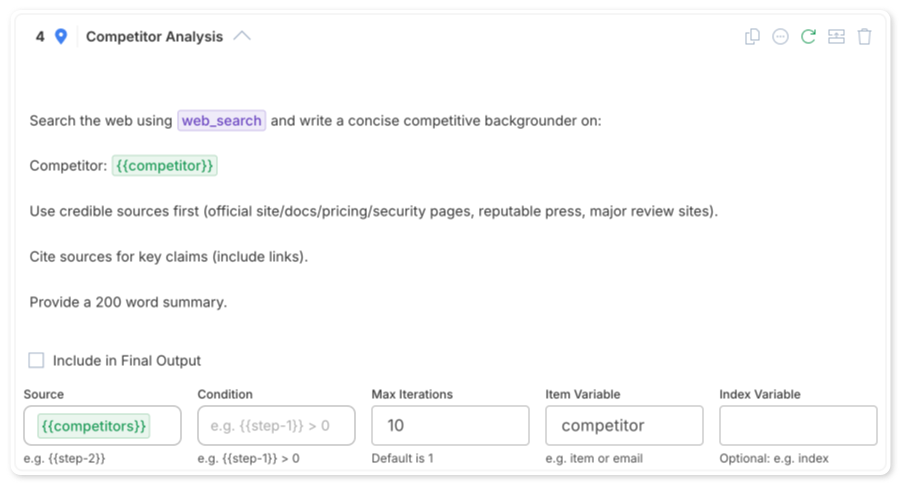
Inside the loop, add child steps that process each item. These steps can reference the current item using the variable name you specified.
Loop Source Format
Loop sources can be defined in two ways. The first is a JSON array:
["Slack", "Microsoft Teams", "Discord"]The second is a simple text list, where each line becomes an item:
Slack
Microsoft Teams
Discord
Both formats work well. JSON arrays are useful when items might contain commas or you need to maintain data types. Text lists are simpler and easy to read when each item is a straightforward string.
Variables: The Data Flow Mechanism
Variables connect workflow steps by passing data forward. Use double curly braces ({{variableName}}) to reference variables within prompt content—note that variable interpolation only works in the prompt content field.
Available Variable Types
Within any step's prompt, you can reference:
- Workflow variables:
{{variable_key}}— inputs defined at the workflow level - Step outputs by index:
{{step-0}},{{step-1}}— raw output from previous steps - Named outputs:
{{outputVariableName}}— from steps with an output variable set - Loop variables:
{{item}},{{index}}— current item and iteration count within loops - Nested properties:
{{terms.effectiveDate}},{{analysis.byCategory}}— when outputs are JSON
Prefer named outputs over index-based references. {{contractTerms.effectiveDate}} is far more maintainable than {{step-2.effectiveDate}}.
Tool-Driven Workflows
AI models have access to platform tools with each workflow run. Explicitly mentioning specific tools in a workflow step prompt can improve the AI model's usage of the tool by providing clear guidance on which tools to use and when.
Available Tools
Reference these tools by name in your prompts:
list_sites— List available Sites, determined by the workflow's Site scopelist_content— List files and folders in a Site or folder (returns names and IDs)retrieve_file_content— Get the text or extracted text content of a specific fileweb_search— Search the internet (requires Web Access enabled)
Example: Automated Expense Processing
Instead of requiring users to upload expense data, a workflow can traverse a file structure. The first step uses list_content to discover employee folders:
Use the list_content tool to get a list of all folders in the receipts site.
Each folder represents an employee who has submitted expenses.

Site: {{receipts_site_name}}

Output as JSON with employees array containing name and id for each folder.
Subsequent loop steps use those IDs to drill into each employee's folder, find the correct month/year subfolder, list receipt files, and extract data from each receipt.
This pattern transforms workflows from passive document processors into active data discovery engines.
Beyond Extraction: Value-Adding Steps
The difference between a report that gets glanced at and one that drives action often comes down to whether you stopped at analysis or continued to actionable outputs.
Common Value-Adding Patterns
Meeting Summary → Action Item Drafts: Don't just extract "Sarah needs to follow up with the vendor." Add a loop step that iterates through action items and drafts the actual follow-up email Sarah can send.
Contract Review → Redline Language: Don't just identify "indemnification clause is too broad." Add a step that drafts the specific language to propose, with rationale and negotiation tips.
Expense Report → Follow-Up Communications: Don't just flag "potential policy violation on expense #47." Add a step that drafts professional follow-up emails grouped by employee.
These steps often take just seconds to execute but transform outputs from reference documents into action-ready tools.
Workflow Architecture Patterns
Pattern 1: Extract → Validate → Analyze → Synthesize
The workhorse pattern for document analysis:
- Extract raw data from source documents
- Validate JSON structure
- Analyze extracted data (categorize, compare, benchmark)
- Synthesize findings into actionable report
Each stage builds on validated outputs from the previous stage.
Pattern 2: Discover → Iterate → Aggregate
For processing collections of unknown size:
- Discover items to process (list folders, query data)
- Iterate through each item with focused analysis (loop step)
- Aggregate individual results into summary
The loop step automatically collects outputs as a JSON array.
Pattern 3: Research → Compare → Recommend
For competitive analysis and benchmarking:
- Research internal position/data
- Research external comparisons (competitors, benchmarks, regulations)
- Compare internal against external
- Recommend actions based on gaps
This pattern works well with Web Access enabled for the external research steps.
Pattern 4: Nested Loops for Hierarchical Data
When data has multiple levels (employees → months → receipts), use nested loops. The outer loop iterates through employees, and an inner loop within each iteration processes that employee's receipts. Inner loop variables remain scoped to their level; outer loop variables remain accessible.
AI Model Selection Strategy
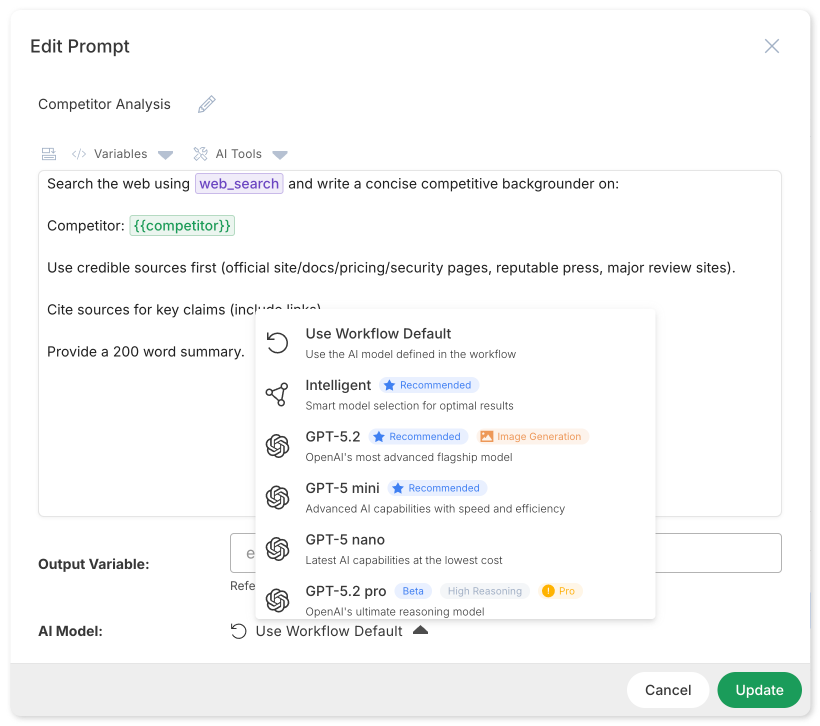
Not every step needs the same AI model. Clear Ideas supports intelligent model routing that optimizes for both quality and cost.
Model Selection Hierarchy
- Workflow Default: Set the default model at the workflow level
- Step Override: Individual steps can override with their own model selection
- Intelligent Selection: Select "Intelligent" for automatic model selection based on task complexity
Use sophisticated models for complex reasoning tasks. Use efficient models or intelligent selection for extraction and validation steps. Use image-specific models for visual generation.
Webhook Triggers: Starting Workflows from External Systems
While workflows can be triggered manually or on a schedule, webhook triggers allow external systems to start a workflow via an HTTP request. This turns your workflows into on-demand services that any application can invoke—a CRM closing a deal, a form submission, a CI/CD pipeline completing a build, or any system capable of making an HTTP POST.
How Webhook Triggers Work
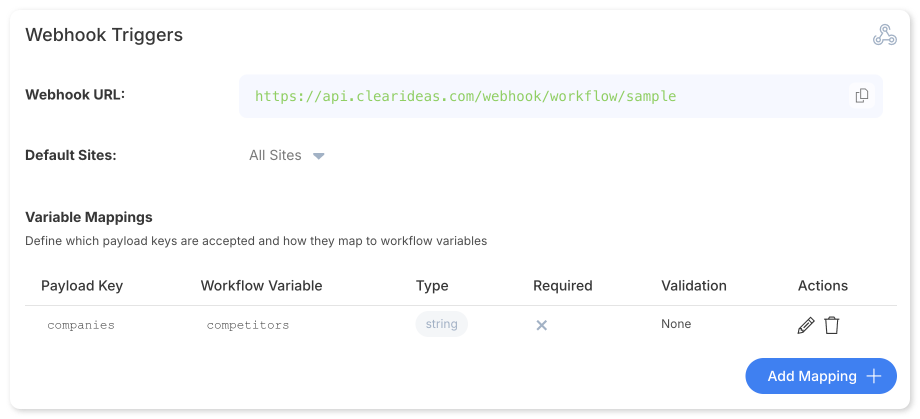
Each workflow with a webhook trigger gets a unique URL. When an external system sends a POST request to that URL with a JSON payload, the workflow executes with the payload data mapped to workflow variables.
The key configuration is the Variable Mappings table, which defines:
- Payload Key: The JSON field name in the incoming request (e.g.,
companies) - Workflow Variable: The variable name available inside the workflow (e.g.,
competitors) - Type: Data type validation (
string,number,array,object) - Required: Whether the field must be present for the workflow to execute
- Validation: Optional validation rules for incoming data
This mapping layer decouples external systems from your internal workflow design. The CRM sends companies in its native schema; your workflow receives it as competitors—the name that makes sense in your prompt context. You can rename, restructure, or add new mappings without changing the external integration.
Example: Triggering a Competitive Analysis
An external system sends a POST request:
{
  "companies": "Slack, Microsoft Teams, Discord"
}
The webhook trigger maps companies → competitors, and the workflow's first step can immediately reference {{competitors}} in its prompt. Combined with the loop patterns covered earlier, each competitor gets focused, individual analysis.
Default Sites
Webhook triggers also let you set Default Sites, which determine which document repositories the workflow has access to when invoked via webhook. This ensures workflows triggered by external systems still operate within the correct data scope.
Webhook Integration
Workflows can send results to external systems via webhook steps, enabling integration with CRMs, notification systems, and other platforms.
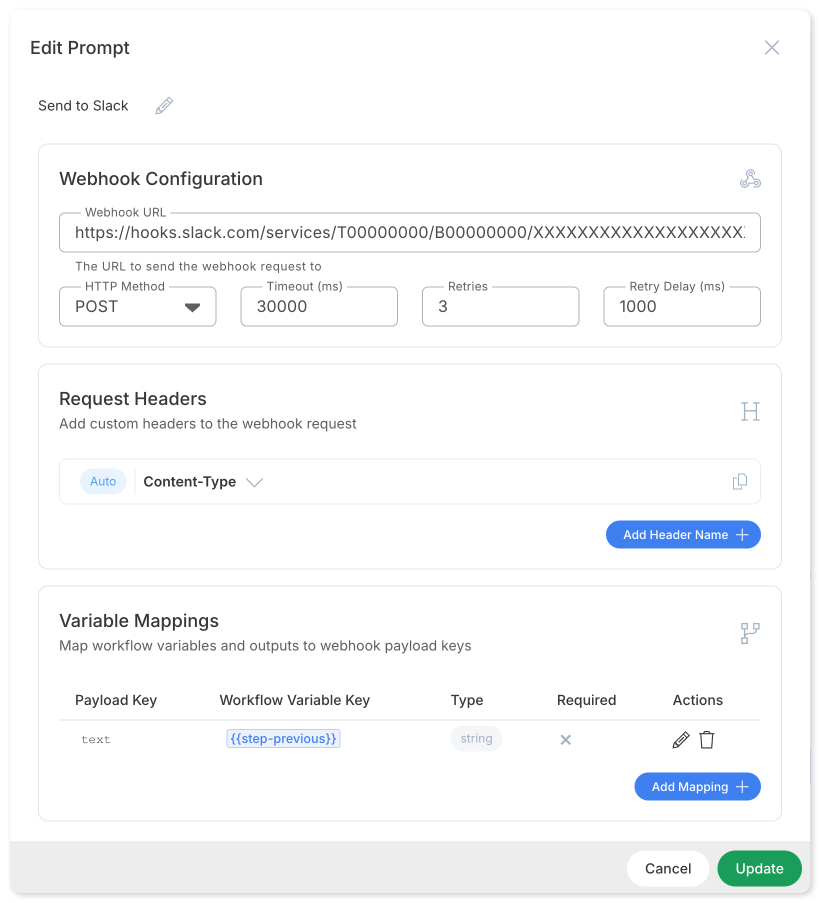
Configure the webhook URL, HTTP method, headers, and choose which workflow data to send. Webhook steps include built-in retry logic for resilience against temporary failures.
Quality Benchmarking
Clear Ideas workflows support automated quality assessment through benchmarks that evaluate outputs across multiple dimensions.

Default Benchmark Visualizations
When you enable the default benchmark, Clear Ideas displays detailed interactive visualizations of your workflow results. These visualizations break down quality scores across multiple dimensions, making it easy to identify which aspects of your output excel and which need refinement.
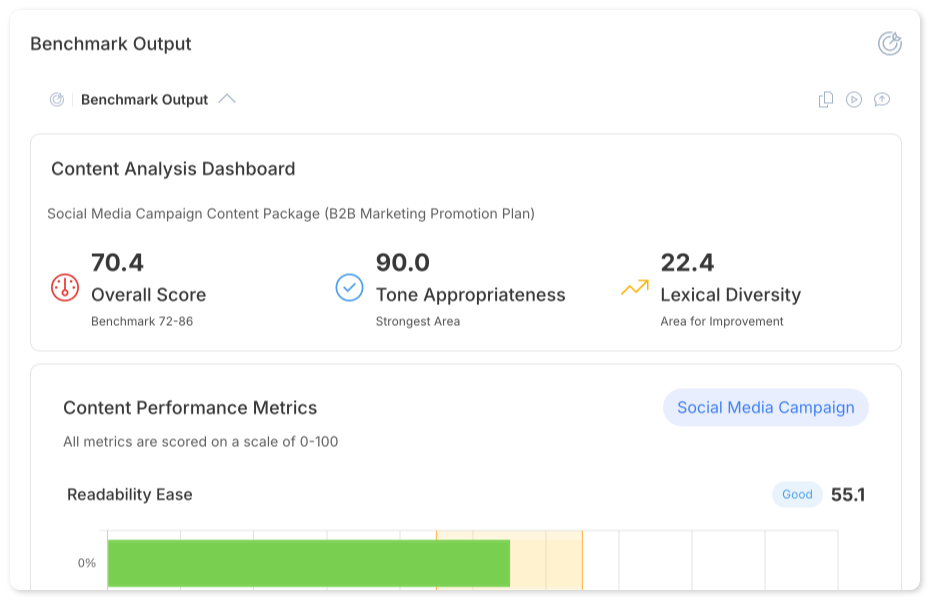
The default benchmark evaluates:
- Readability: How easy the output is to understand
- Accuracy: Factual correctness and source grounding
- Clarity: How well-structured and unambiguous the content is
- Tone: Appropriateness of voice for the intended audience
- Engagement: How compelling the content is
- Vocabulary: Diversity and appropriateness of word choice
Custom Benchmark Prompts
For domain-specific requirements, you can create your own benchmark evaluation prompt. This allows you to test for criteria unique to your use case—legal citation formats, calculation accuracy, brand voice consistency, or any other quality dimension relevant to your workflow's purpose.
Toggle off "Use Default Benchmark" and enter your custom evaluation prompt. Your prompt receives the workflow output and should return structured scores and feedback.
Debugging Workflow Failures
When workflows fail or produce unexpected results, check these common causes:
1. Missing Context
Symptom: Step produces generically correct but specifically wrong output Cause: Prompt lacks workflow context preamble Fix: Add the three-part preamble (workflow purpose, step purpose, data description)
2. JSON Parsing Failures
Symptom: Subsequent steps receive empty or undefined values Cause: Malformed JSON from generation step Fix: Add validation step; check for markdown fences or explanatory text
3. Property Access Failures
Symptom: {{data.propertyName}} returns undefined despite valid JSON
Cause: Property names contain spaces, or there's a mismatch between the name in the schema and the variable reference
Fix: Avoid spaces in property names and ensure consistent naming across schemas and variable references
4. Loop Not Iterating
Symptom: Loop runs once or produces unexpected aggregation Cause: Source isn't valid JSON array; using string where array expected Fix: Ensure variable value is proper JSON array syntax
5. Inconsistent Results Between Runs
Symptom: Same inputs produce different outputs Cause: Prompts lack specific structure requirements Fix: Add explicit JSON schemas with exact field names and types
Production Checklist
Before deploying a workflow to production, verify:
- Every prompt includes context preamble (workflow purpose, step purpose, data context)
- Every JSON-producing step has a corresponding validation step
- All JSON schemas avoid spaces in property names
- Loop sources use JSON arrays or one-item-per-line text lists
- File input variables are marked appropriately
- Final output steps are correctly selected
- Max iterations are set appropriately on all loops
- Appropriate AI models assigned to complex vs simple steps
- Webhook steps have proper retry handling configured
- Value-adding steps produce actionable outputs, not just analysis
- Benchmarks are enabled for quality monitoring
Building for Consistency
The patterns in this guide share a common theme: be explicit. Provide clear context in every prompt. Validate structured outputs. Use loops to give each item focused attention.
Each of these practices adds minimal execution time while significantly improving reliability. The best workflows are straightforward—they're explicit, validated, and designed to take full advantage of step isolation.
Apply these patterns and you'll have workflows that deliver consistent, high-quality results run after run.
Ready to build production-grade AI workflows? Start free with Clear Ideas and apply these patterns to your first workflow. The AI Workflow Builder provides visual tools for constructing robust multi-step workflows without code.