Sites
Clear Ideas™ Sync Desktop Application
Desktop file sync governed by selected Sites, permissions, and organization policy
Access approved Site files on Windows and Mac, work offline, upload new versions, preserve conflict copies, and synchronize through signed Clear Ideas sync requests.
Desktop sync
Clear Ideas Sync in Action
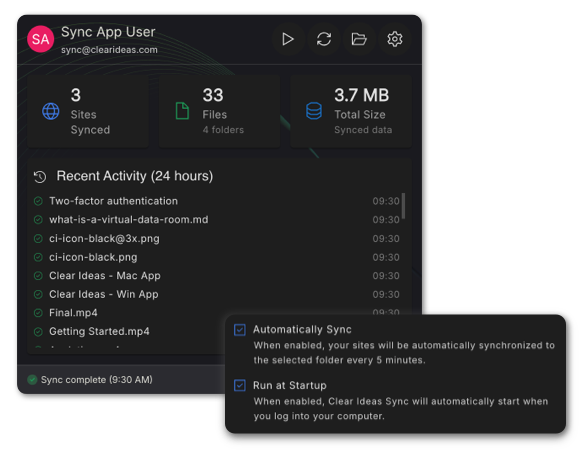
See how Clear Ideas Sync brings selected Site content to the desktop without stepping outside Clear Ideas permissions, local-sync policy, manifests, scoped downloads, and controlled upload/version handling.
- Offline AccessWork with your documents even when disconnected. All changes sync automatically when you're back online.
- Cross-Device SyncSync selected Sites across desktop devices while Clear Ideas permissions, archived-site state, and organization local-sync policy continue to govern what can sync.
- Conflict HandlingWhen the same file changes in two places, Sync preserves your local work with a backup copy and restores the server version as the primary file so conflicts are easier to recover from.
- Secure TransferSync uses signed app requests with timestamp checks, encrypted transfer, download tokens, and controlled upload/version endpoints rather than broad file access.
- Desktop DiagnosticsQuick access to sync status, recent file activity, key settings, and troubleshooting details directly from your desktop app.
- Conflict Version UploadsWhen local and server changes collide, Sync can preserve the local edit as a conflict version while keeping the server record intact for review.
Download Clear Ideas™ Sync
Desktop file sync app for Windows and Mac
Built for teams that need secure two-way file sync between local folders and Clear Ideas, including offline access and automatic desktop updates.
Windows
For Windows 10 and later
Version ... • ...
Mac
Universal build for Intel and Apple Silicon
Version ... • ...
Installation Instructions
Setup and requirements
System Requirements and Sync Model
- System RequirementsWindows desktop sync app: Windows 10 or later on x64. Mac desktop sync app: macOS 13 or later with a universal binary for Intel and Apple Silicon.
- How Clear Ideas Sync WorksConnect your Clear Ideas account, select the Sites that are allowed to sync, receive a content manifest, download through scoped tokens, upload new files or versions, and let queued updates synchronize automatically when you reconnect.
Updates
Always Up to Date
Clear Ideas Sync automatically keeps itself updated with the latest features and security improvements.
- Automatic UpdatesNew features and security updates are delivered automatically in the background.
- Secure DistributionAll updates are digitally signed and distributed through our secure CDN.
- Non-DisruptiveUpdates install in the background without interrupting file sync.
Support
Security, Setup, and Support
Clear Ideas Sync uses encrypted transfer and signed desktop updates to protect your files during synchronization.
Need help with setup? Visit our desktop sync setup guide and support resources. Investigating issues? Start with troubleshooting sync issues or review our security documentation.
Frequently Asked Questions
How does Clear Ideas™ Sync work?
The app creates a bidirectional sync between your local filesystem and selected Clear Ideas™ sites. Changes made locally are automatically uploaded to the cloud, and changes made in Clear Ideas™ are downloaded to your local folder. Sync occurs automatically every 5 minutes, or you can trigger it manually.
What happens if I modify the same file locally and in Clear Ideas™?
The sync app automatically detects conflicts when a file is modified in both locations. It creates a backup of your local version with '_local_backup' appended to the filename, then downloads the server version to replace the local file. This ensures your work is preserved while keeping the most recent server version as the primary file.
Can I choose which sites to sync?
Yes, you can select specific Clear Ideas™ sites to sync with your local folders. The app allows you to configure different local folders for different sites, giving you full control over your sync setup.
How do I install Clear Ideas™ Sync?
Download the appropriate version for your operating system (Windows or Mac) from our website. Run the installer and follow the setup wizard. You'll need to log in with your Clear Ideas™ account credentials to get started.
Which operating systems are supported?
Clear Ideas™ Sync supports Windows 10 and later, and macOS 13 and later. The Mac app is a universal build that supports both Intel and Apple Silicon.
Do I need a Clear Ideas™ account to use the sync app?
Yes, you'll need an active Clear Ideas™ account to use the sync app. The app connects directly to your Clear Ideas™ sites and requires authentication to access your content.
Is Clear Ideas Sync available for Mac?
Yes. Clear Ideas Sync for macOS is available as a universal application that supports both Apple Silicon and Intel Macs on macOS 13 and later.
Does Clear Ideas Sync support Apple Silicon?
Yes. The Mac download is a universal build and runs natively on Apple Silicon (M-series) and Intel-based Macs.
Can I use my files when I'm offline?
Yes! Clear Ideas™ Sync provides full offline access. Files you've previously synced are available locally even when you're disconnected from the internet. Any changes you make offline will sync automatically when you reconnect.
What happens to changes I make while offline?
Changes made while offline are queued and synchronized automatically when your internet connection is restored. The app will show you the sync status and any conflicts that need resolution.
Can I use Clear Ideas Sync offline?
Yes. You can continue working with previously synced files while offline, and Clear Ideas Sync automatically uploads your changes when your connection is restored.
Is my data secure during sync?
Yes. File transfers are encrypted in transit, and synced content remains protected by the same security controls that govern the Clear Ideas™ platform.
Does the sync app store my files anywhere else?
Clear Ideas Sync stores files locally on your device and in the governed Clear Ideas cloud storage for the Sites you choose to sync. It does not create a separate unmanaged file store for synced content.
Can I control which files get synced?
Yes, you have full control over which sites and folders are synced. The app respects your Clear Ideas™ permissions and only syncs content you have access to. You can also pause or disable sync at any time.
Does Clear Ideas™ Sync run in the background?
Yes, Clear Ideas™ Sync runs in your system tray and operates continuously in the background. It monitors file changes and maintains synchronization without interfering with your work.
How much system resources does it use?
The app is designed to be lightweight and efficient. It uses minimal CPU and memory when idle, with resource usage scaling based on sync activity. The system tray integration provides quick access to sync status without consuming desktop space.
How do I update the sync app?
Updates are automatic. Clear Ideas™ Sync checks for new versions in the background and installs them without interrupting your work. You can also manually check for updates through the app menu.
Is Sync a native desktop app?
Yes. Clear Ideas Sync is available as dedicated desktop applications for macOS and Windows. The macOS app is a native universal build for both Apple Silicon and Intel Macs, and the Windows app is distributed as a standard desktop installer.
What if I encounter a problem with sync?
Check the sync status in the system tray for any error messages. You can pause and resume sync, or view the activity log for detailed information. Expanded sync diagnostics make it easier to see what happened during recent sync events. If issues persist, contact [email protected] with your sync logs.
Can I use multiple devices with sync?
Yes, you can install Clear Ideas™ Sync on multiple devices. All devices will stay synchronized through your Clear Ideas™ account, giving you access to your files across all your computers.
How do I update Clear Ideas Sync on Windows and Mac?
Clear Ideas Sync updates automatically in the background on both Windows and Mac. You can also trigger a manual update check from the app menu.